
Biometric authentication allows you to use the app with a security code, Face ID, or fingerprint, depending on your device. This not only makes it easier to use the app but also enhances its security.
Activate Biometric Authentication in the Edenred app
-
Log in to your account or register in the app (if you are using the app for the first time, register only after you have received your Edenred payment card).
-
First, log in using your password or Bank ID.
-
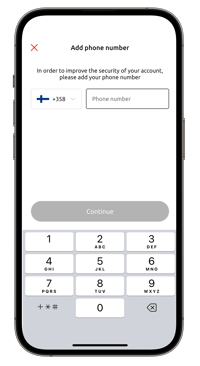
Add your phone number with the country code, without the initial zero (e.g. +358 50...). Providing your phone number is mandatory, as we will send you a verification code to verify the event.
-
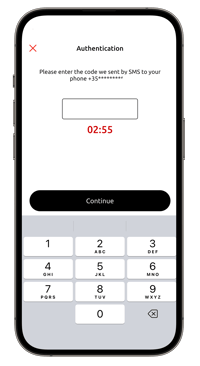
Edenred will send you a 6-digit verification code via text message. Enter it into the app.
-
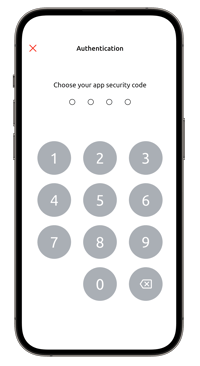
Create 4-digit security code and verify it.
-
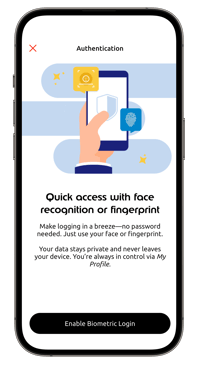
Enable biometric authentication. If you do not wish to allow biometric authentication, click the cross in the upper left corner. In this case, authentication will happen with the security code you just created.
-
Your device will prompt you to enable facial recognition or fingerprint authentication, depending on which authentication method your device supports.
-
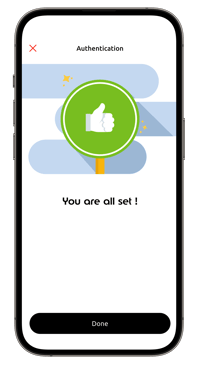
You are now ready, and biometric authentication is enabled! You can now open the app and easily view your card information!
If you want to disable biometric authentication or enable it again later, you can do so in the Edenred app by opening Account - Profile - Security Settings part. You will need your security code to confirm the event.